Buyer manual
Guide to using the MarketRegional storefront: browse products, cart, checkout and account.
1. What is MarketRegional
MarketRegional is a regional platform for local stores. You can discover merchants in your area, browse products, buy with secure payment, and track shipments.
Each store is independent: the cart groups items by store, but checkout and payment are done separately for each one.
2. Create an account and sign in
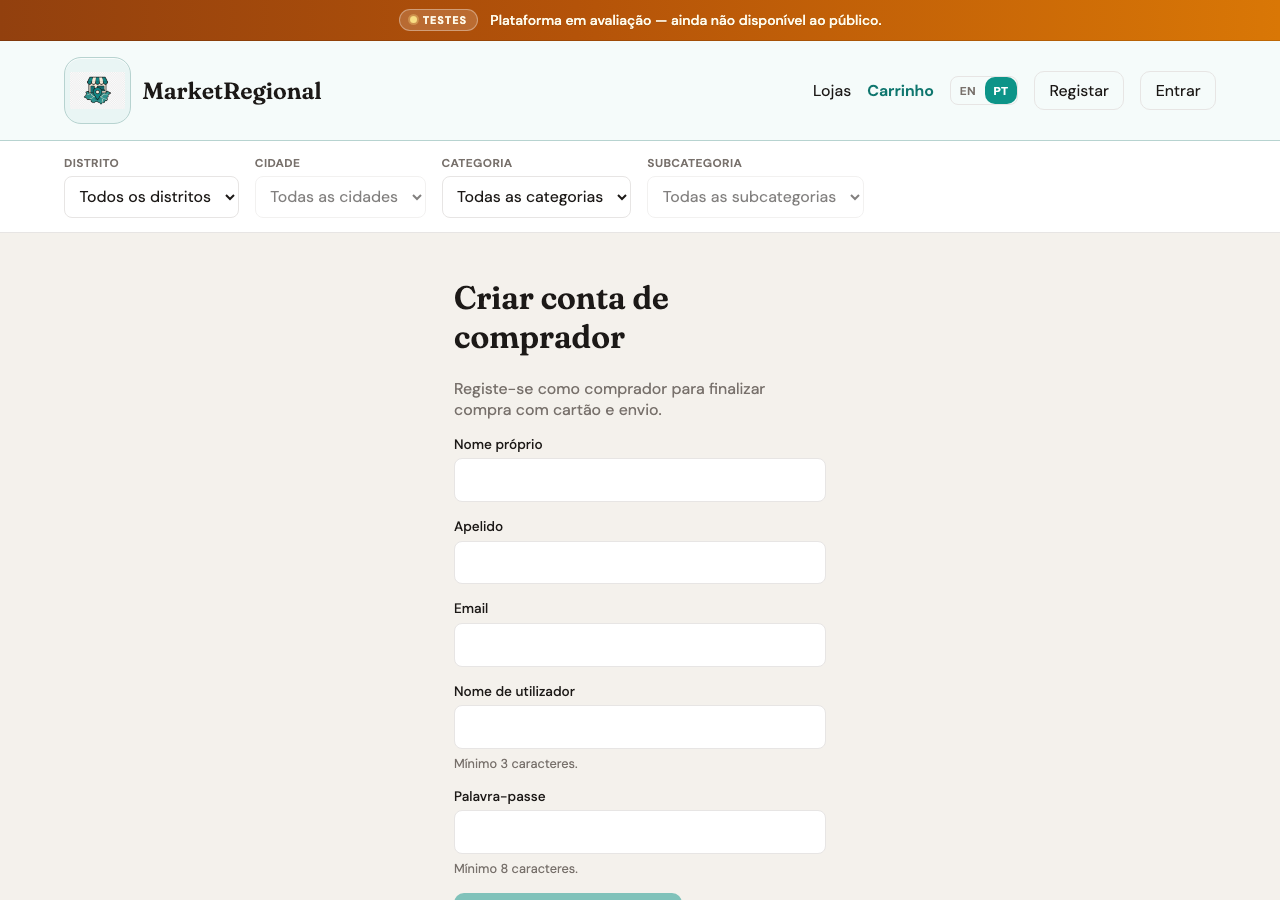
Step 1 — Register: click Register in the menu and enter your first name, last name, email, username, and password.
Step 2 — Confirmation: after registering, use Sign in with the same credentials.
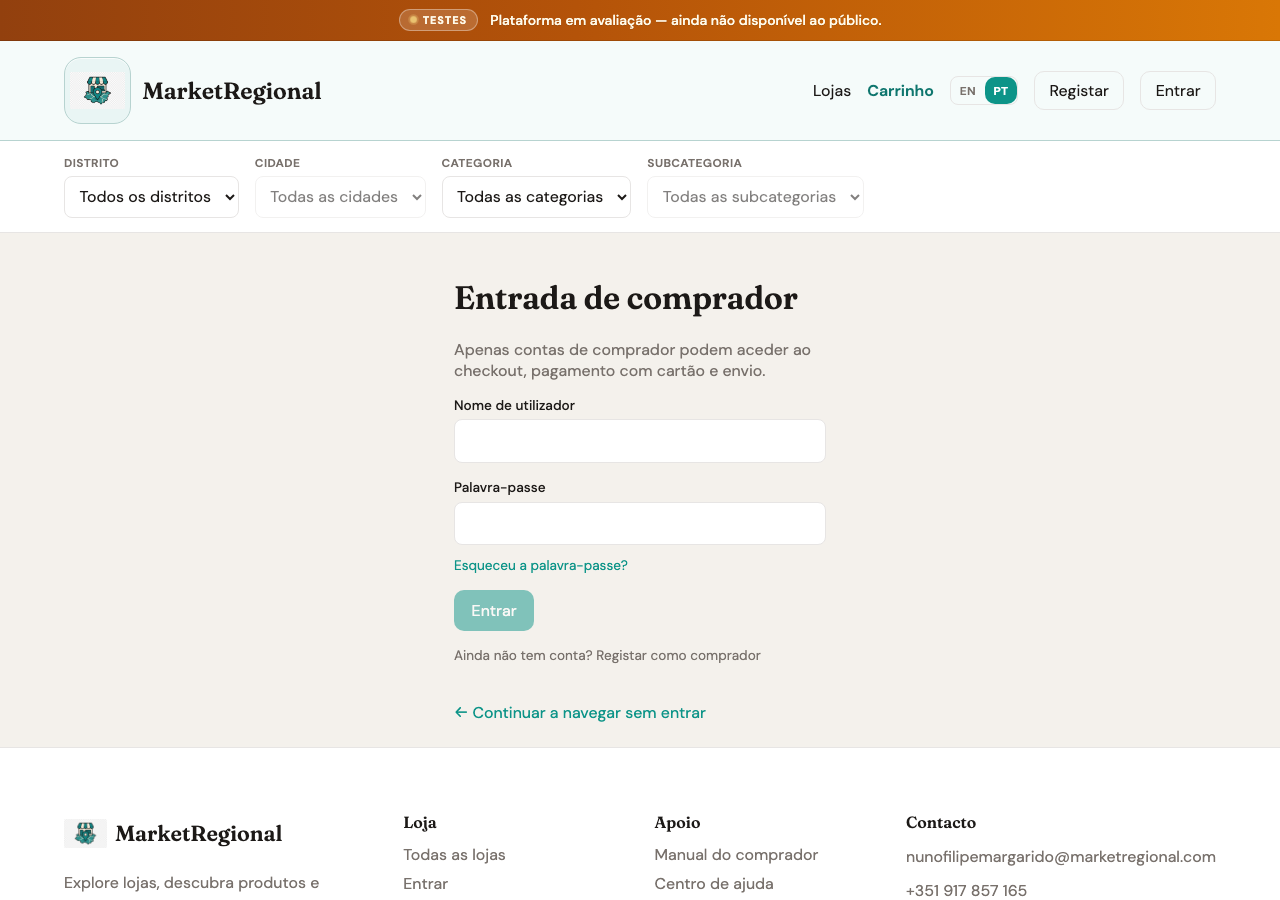
Step 3 — Recovery: if you forgot your password, use the link on the login page to receive instructions by email.
- You can browse stores and products without signing in; login is required to pay and receive orders.
3. Browse stores and products
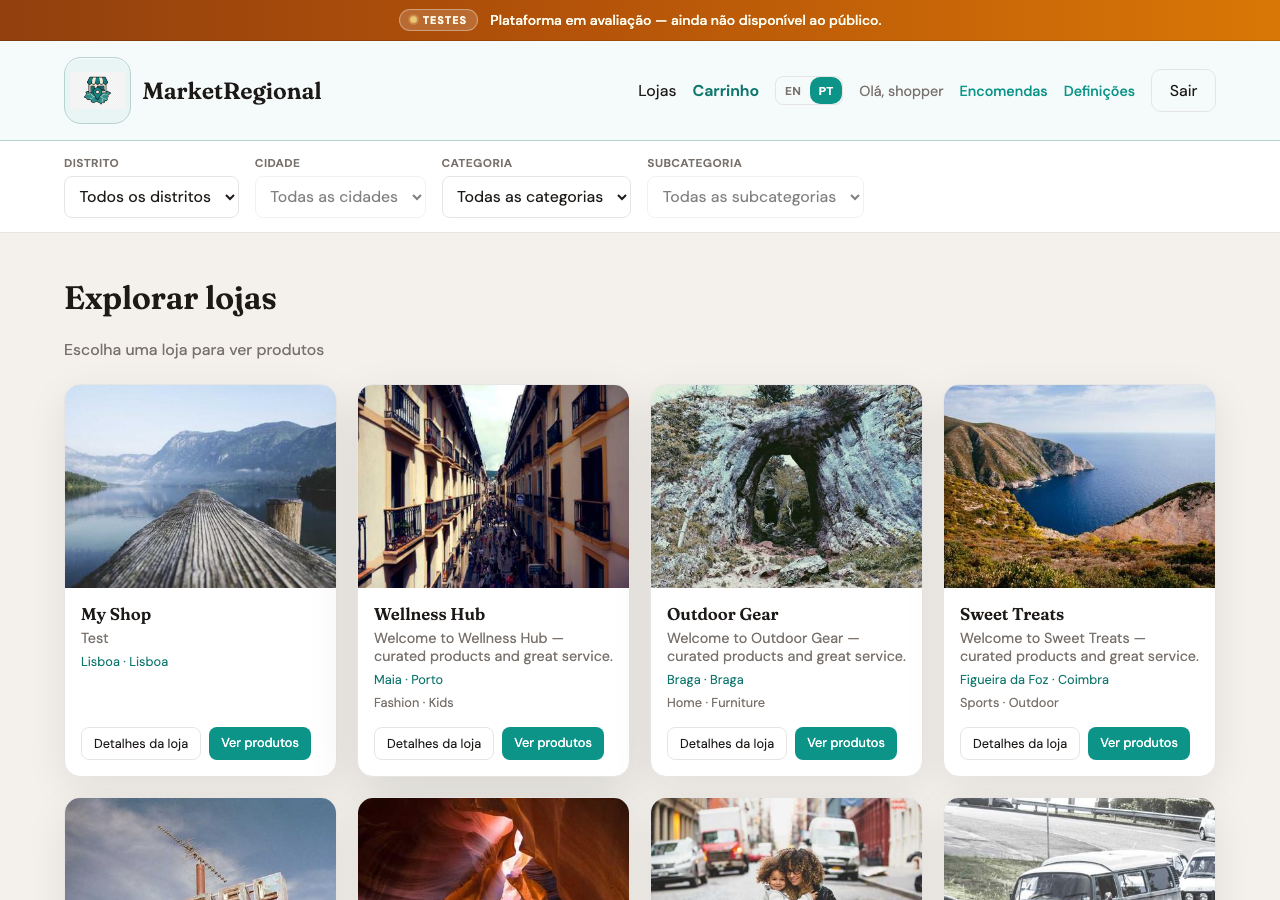
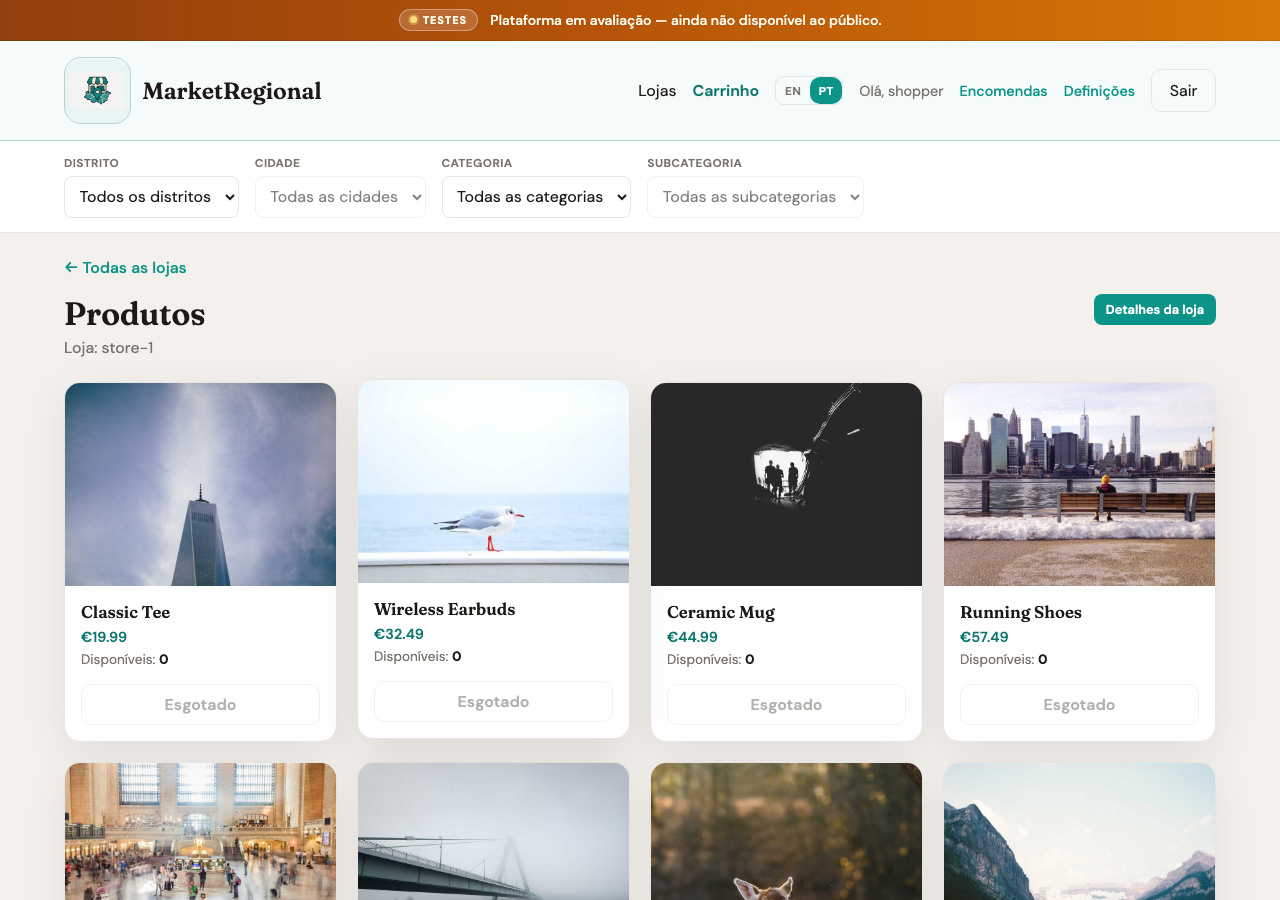
Step 1 — On the home page, filter by district, city, category, or subcategory.
Step 2 — Open a store or go directly to a store’s product list.
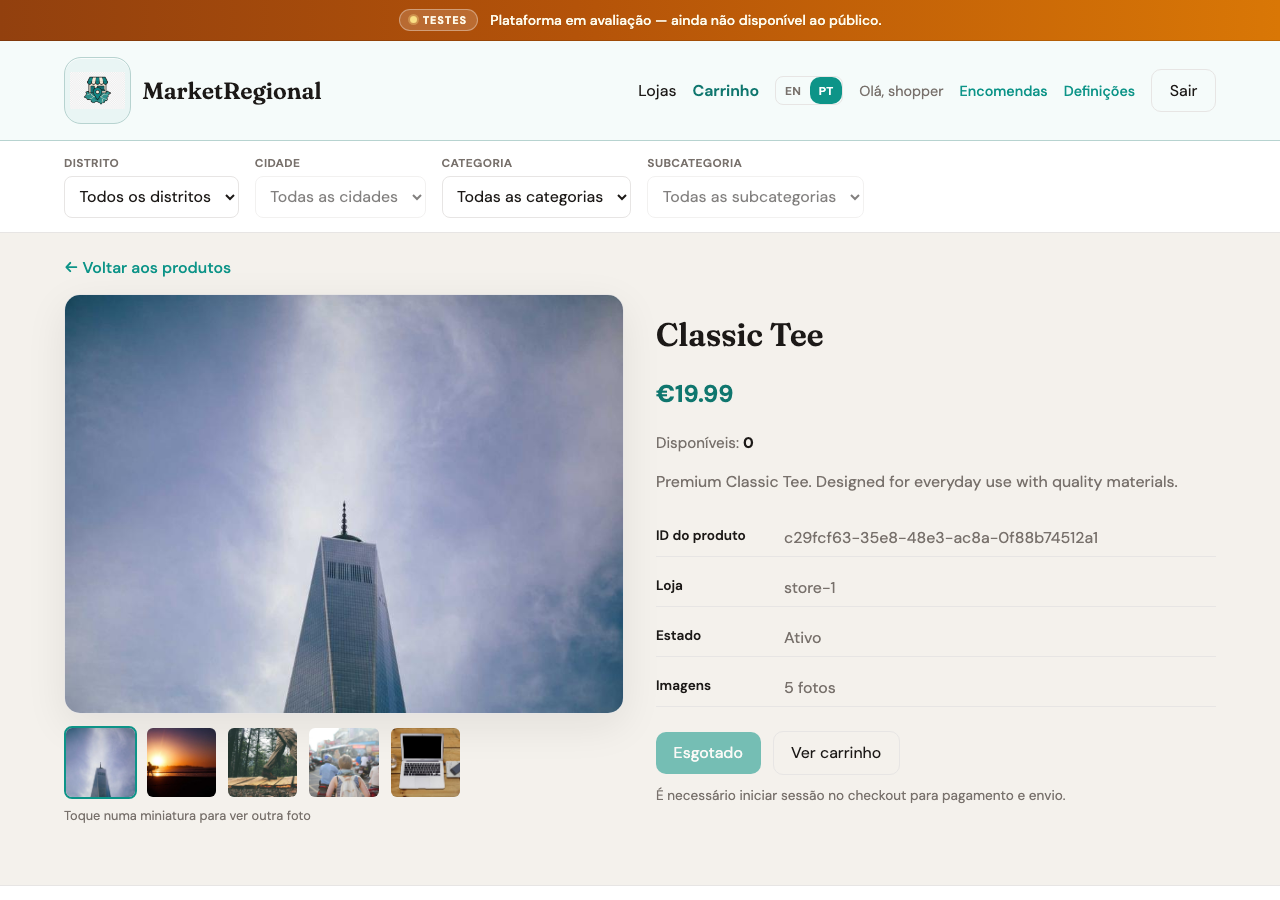
Step 3 — Click a product to see photos, sizes, price, and stock.
Step 4 — Click Add to cart (requires available stock).
4. Cart and checkout
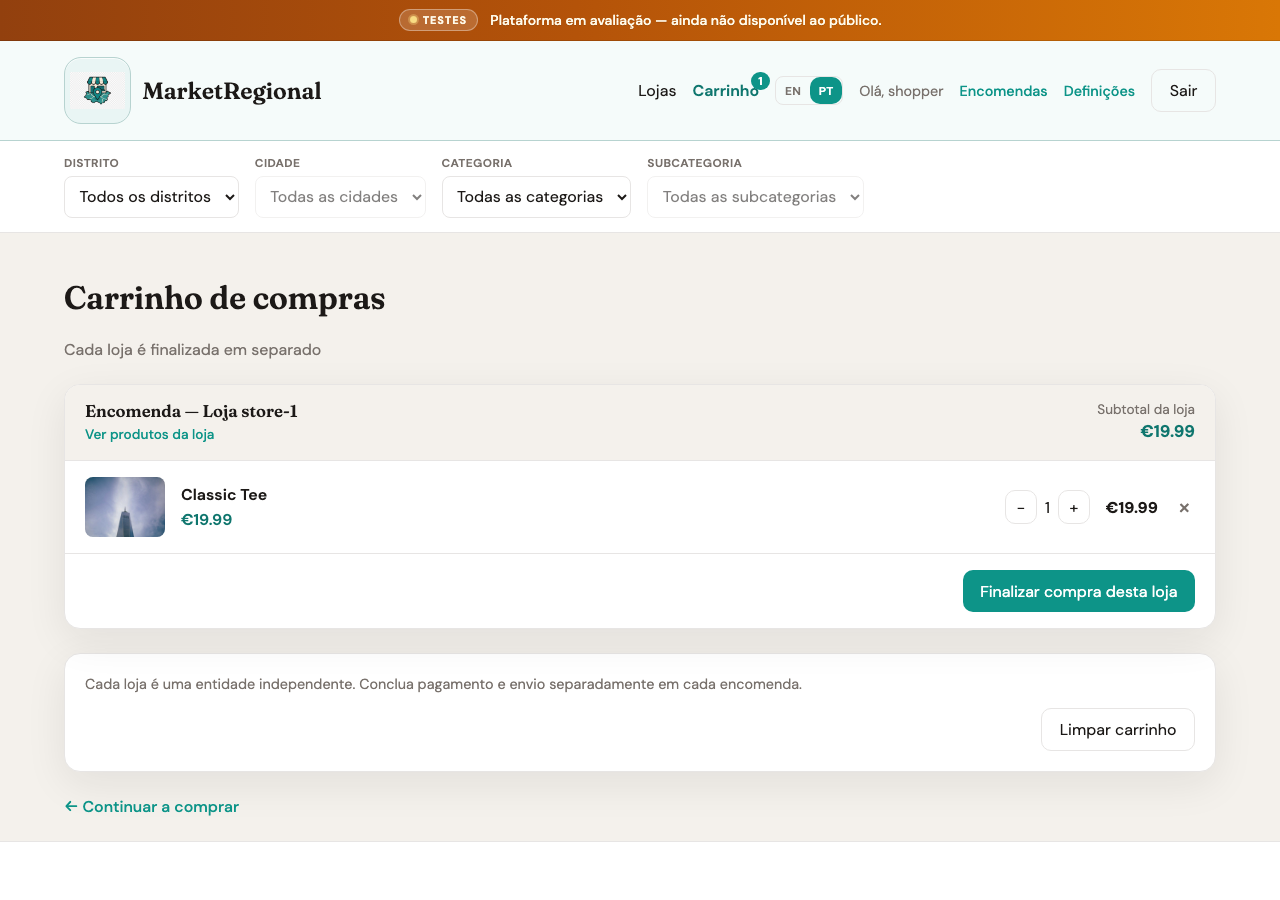
Step 1 — Open Cart in the menu. Items appear grouped by store.
Step 2 — Adjust quantities or remove items. Each store has its own subtotal.
Step 3 — Click Complete purchase for this store (requires signed-in session).
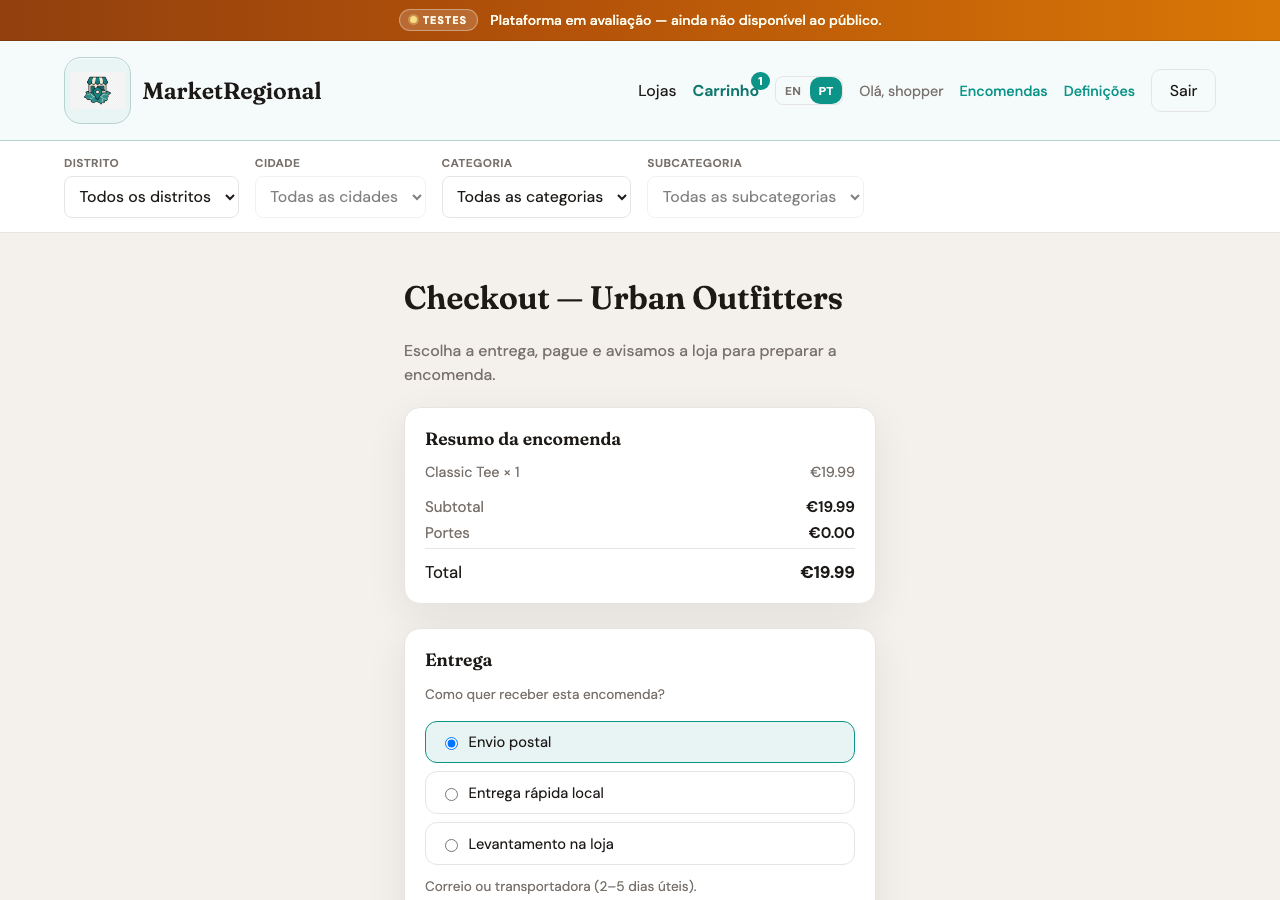
Step 4 — At checkout, enter your address, choose shipping type (CTT, Glovo, store pickup), and see delivery fees.
Step 5 — Choose payment (Easypay card or MB WAY) and confirm.
Step 6 — After payment, the store prepares the shipment and you may receive an invoice by email.
- Complete one order at a time per store.
- If you have items from several stores, repeat checkout for each one.
5. Orders, returns, and invoice
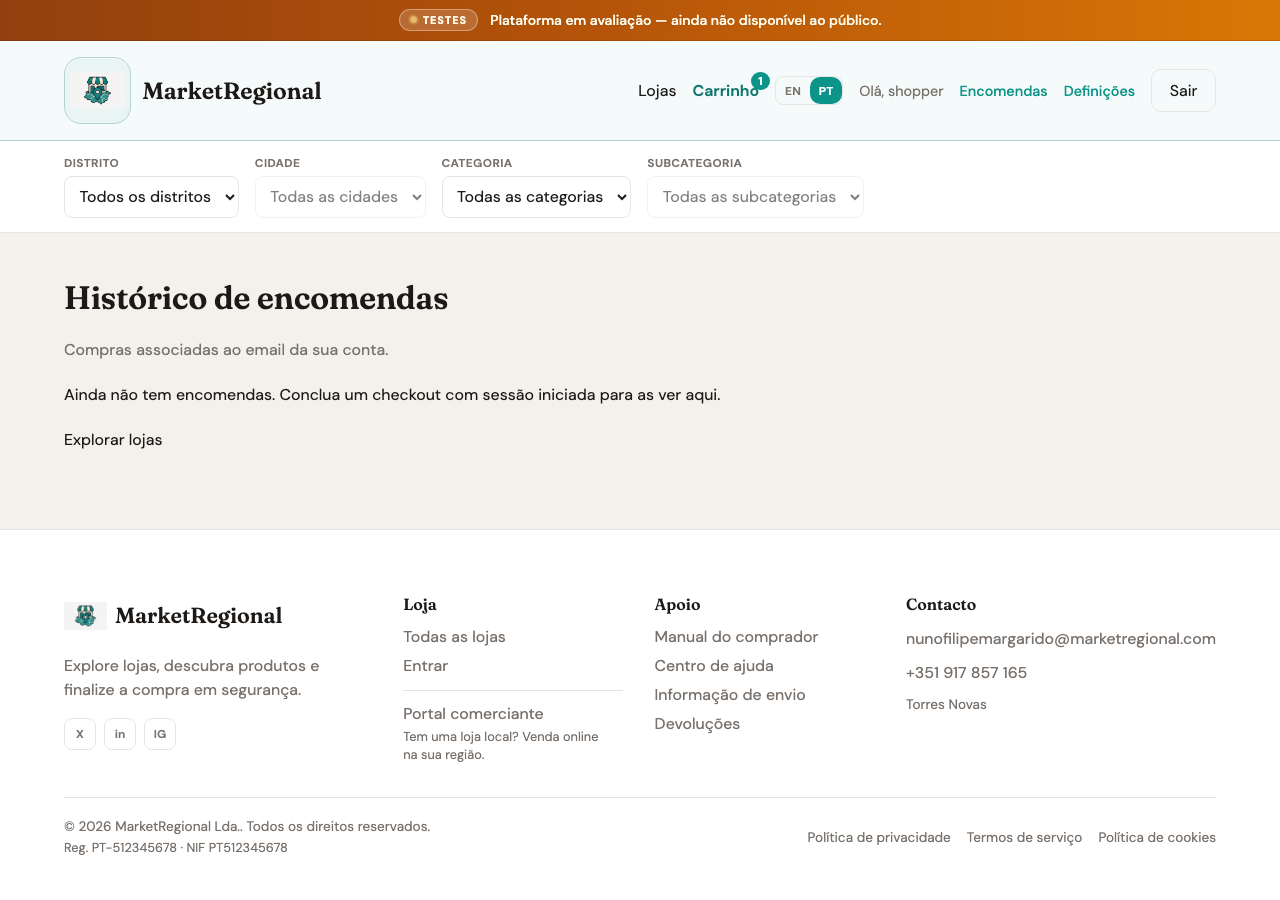
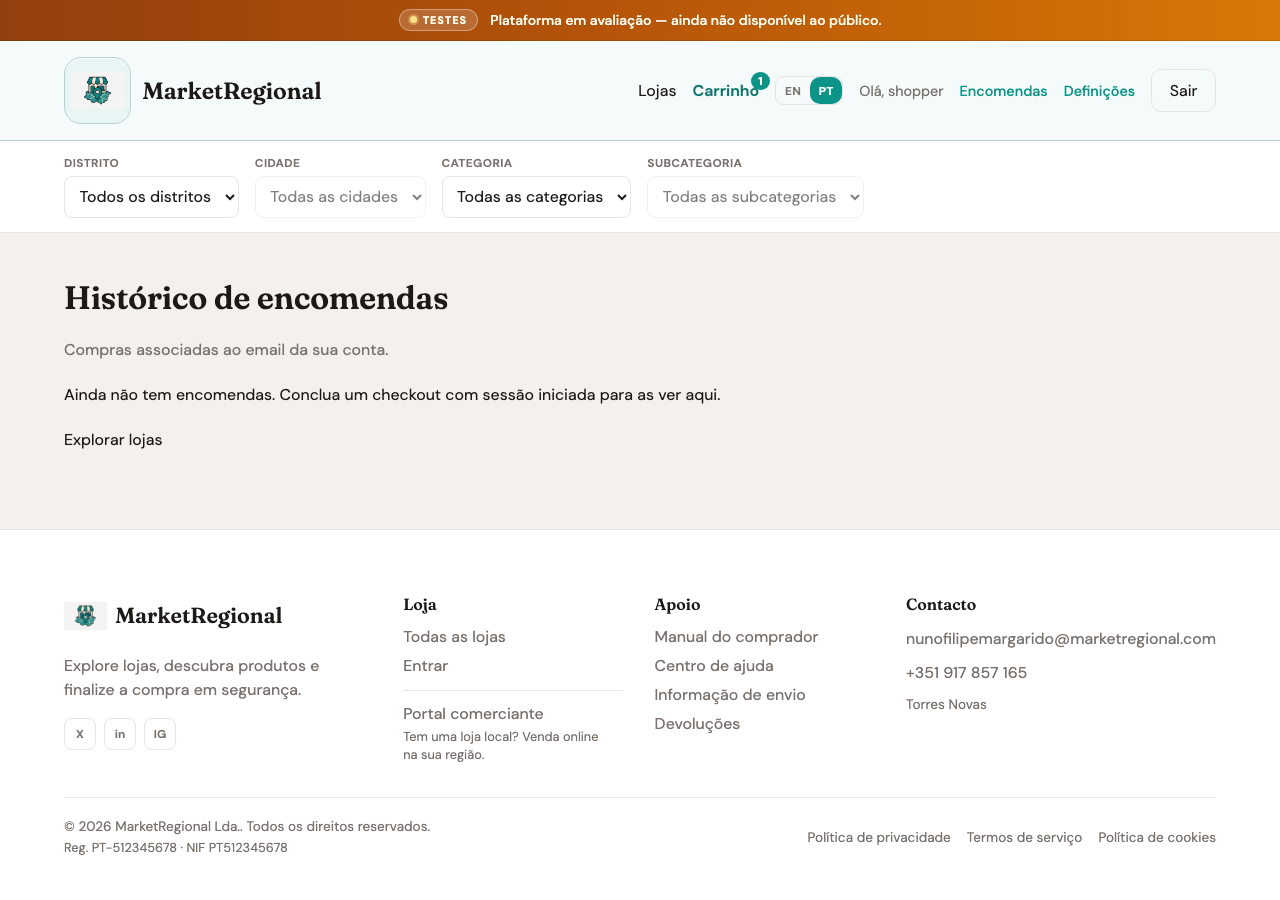
Step 1 — When signed in, open Orders in the menu.
Step 2 — View history linked to your account email (date, total, status).
Step 3 — Click Tracking and returns on an order to open the detail page.
Step 4 — On the detail page, check shipment tracking, download the PDF invoice, and use self-service (up to 14 days).
Step 5 — Return request: enter a reason and submit; if approved, CTT schedules pickup at your address.
Step 6 — Refund: separate request, depending on payment eligibility.
- Physical returns may be blocked if the order includes products marked as non-returnable.
- The message lists affected items; a refund may still be available.
6. Account settings
In Settings you can update your buyer account name, phone, and email.
7. Support
For questions about shipping, returns, or how the platform works, use the contacts shown in the footer.